

DATA RECOVERY
Professional SD Card Photo and Video Recovery
Card not visible, asking to be formatted, or did you accidentally delete important shots? StrongRecovery is optimised for restoring camera RAW files and 4K video. Safe, fast and with no risk of data overwriting.

How to Recover Data from an SD Card Using StrongRecovery
"What happened? My photos, videos and files are gone – what do I do now? Why is the SD card suddenly empty? Everything was there just a moment ago!"
Most common reasons for sudden file loss on a memory card:
- Sudden loss of access to data, resulting in the card reporting an error (drive shows as RAW Drive)
- Accidental deletion of files or folders
- Unintentional formatting of the microSD/SD card

If any of these situations applies to you, do not worry – this article walks you through the recovery process step by step and explains how to use the software to get your important data back.
Introduction – SD Memory Cards
SD memory cards are one of the most popular and versatile storage media available. They are used in a wide range of devices, including:
- Digital cameras: An SD card in a camera stores high-resolution photos, 4K video and other media, giving photographers and videographers the freedom to work without worrying about running out of space.
- Smartphones: An SD card in a phone expands the device's internal storage – especially useful on models with limited built-in memory. It can hold photos, videos, music, apps and other data.
- Video cameras and camcorders: An SD card in a camcorder records high-definition footage with smooth, clear image quality. High-capacity cards allow extended recording sessions without the need to offload footage frequently.
- Tablets: A memory card in a tablet can store additional apps, games, films, music and other files, giving users more entertainment options and expanded functionality.
Unfortunately, SD memory cards are vulnerable to damage and data loss. They can be formatted, accidentally erased, physically damaged or corrupted through human error. In such situations, recovering data from an SD card becomes critically important.
What Is an SD Memory Card?
The history of SD cards began in 1999, when SanDisk, Toshiba and Panasonic joined forces to create a new storage standard. The goal was a compact, universal format that could replace larger and less efficient memory cards such as CompactFlash.
The result was the SD (Secure Digital) memory card – a small, portable storage medium designed to hold all kinds of files: photos, videos, music, documents and applications. SD cards are available in various physical sizes and capacities to suit individual needs.
Common SD card capacities:
- 32 GB: Ideal for photos, music and documents.
- 64 GB: A great choice for users who need more space for high-resolution photos and videos.
- 128 GB: Well suited for storing large amounts of data, including 4K video and games.
- 256 GB: The choice of professionals who need space for RAW photos and 8K footage.
- 512 GB: Maximum capacity for SDHC cards, ideal for storage-intensive workflows.
- 1 TB: Next-generation SDXC cards offering enormous capacity for the most demanding users.
SD card types:
- SDHC (Secure Digital High Capacity): Supports capacities from 4 GB to 32 GB.
- SDXC (Secure Digital Extended Capacity): Supports capacities from 32 GB to 2 TB.
- SDUC (Secure Digital Ultra Capacity): Supports capacities from 2 TB to 128 TB.
SD card applications:
- In a camera: Stores high-resolution photos and video.
- In a smartphone: Expands internal storage for apps, photos, music and other data.
- In a camcorder: Records high-definition footage with smooth, clear image quality.

Data Loss from an SD Card – Causes and Solutions
Why do photos and videos disappear from memory cards?
SD memory cards are widely used and highly practical. They store photos, videos and documents in cameras, phones and consoles. However, they are susceptible to logical errors and physical damage.
Most common causes of data loss on a memory card:
- Physical damage: Caused by dropping, exposure to water or overheating.
- Logical damage: File system errors, power failures or RAW drive errors.
- Formatting: Accidental erasure of the card in a camera or computer.
- Human error: Unintentional deletion of important photos or folders.
What to do when data is lost from an SD card?
In most cases, data can be recovered independently using the right tools:
- Data recovery software: Programs such as StrongRecovery allow you to safely scan the card and restore files.
- Professional data recovery services: Required only in cases of serious mechanical or electronic hardware damage.

DIY Data Recovery – What Can You Do?
Data loss can happen to anyone. A failing storage device, accidental file deletion, a virus attack – these are just some of the reasons valuable files can disappear. It is worth knowing what steps to take so you can recover data on your own.
Here are a few guidelines that will help:
1. Identify the cause of data loss.
The first step is to understand what happened. This will help you choose the most appropriate recovery method.
2. Do not write new data to the card.
Overwriting lost data may make recovery impossible. Do not save anything to the card until you have completed the recovery process.
3. Try data recovery software.
There are many data recovery programs available, both free and paid. Some are straightforward enough for users with no technical background. A few options to consider:
Recovering Photos and Videos from an SD Card with StrongRecovery
We support all major SD card brands: SanDisk, Kingston, Samsung, Lexar, Sony, Toshiba, as well as microSD cards from smartphones and dashcams.
Before you start, keep the following rules in mind:
- The most important rule after data loss: do not overwrite the card. Do not save anything to it, do not format it and do not modify any files on it.
- Recover all important files to a different location and verify them (open the files) before using the SD card again.
- Remember: you can download the free trial version of StrongRecovery to assess the situation and recover a few files at no cost.
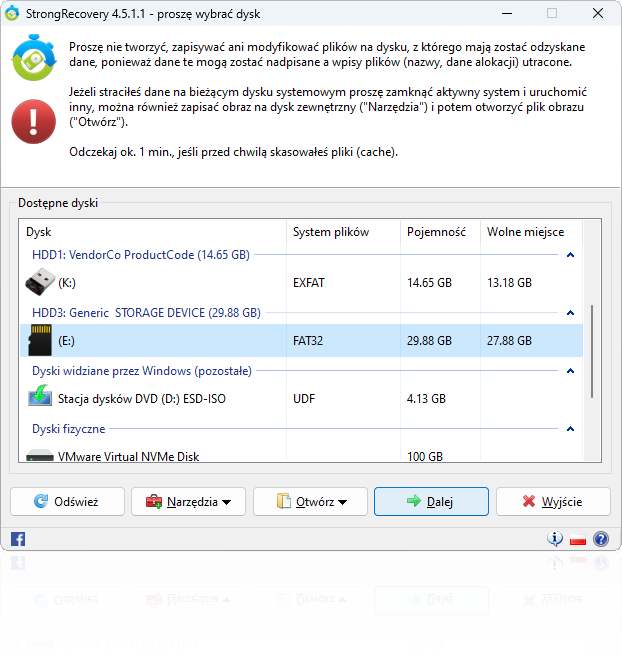
Step 1: Select the SD Card in the Program
Launch StrongRecovery and select the SD card from the drive list. If the card's partition has been lost and it does not appear with an assigned drive letter or file system, follow the instructions in the article on Partition Recovery.

Step 2: Scan and Preview Files
Once the card is selected, StrongRecovery begins its analysis. While the scan is running you can already browse the reconstructed directory tree and recover the files you need. You can also switch to thumbnail view for photos (Menu → View or press F12).


Step 3: Recover and Save Files
Select the files and folders you want to restore and click "Recover" from the main menu or right-click context menu. You will then choose the destination folder for the recovered data. Always save to a different drive – never back to the source SD card, as this risks overwriting the data you are trying to recover.

StrongRecovery also performs a DEEP SCAN of the card, searching for raw file signatures (RAW files +). Once the scan completes or a sufficient number of RAW files has been found (photos or other media), you can begin recovering them. Raw file detection works by identifying file headers independently of the file system – meaning files can be recovered even when file system metadata (allocation data, file names, dates and attributes) has been lost or corrupted.
Summary and Additional Recovery Methods for SD Cards
As you can see, recovering data from a memory card using data recovery software is straightforward and requires no specialist knowledge. StrongRecovery offers a range of additional features to support the recovery process depending on your specific situation.
If you want to keep the data on your SD card safe against future card failure, you can create a card image – a byte-for-byte copy stored as a disk image file. This image then acts as a virtual "card" that you can open directly in the software.
SD and microSD cards very commonly contain photos. StrongRecovery makes photo recovery easy and convenient – you can preview every recovered image as a thumbnail before deciding what to restore. The software also supports RAW photo recovery with higher success rates thanks to proprietary algorithms designed specifically to identify and reconstruct these file types.
StrongRecovery also supports recovery of AVCHD video (MTS files), which are frequently recorded onto memory cards. See the article on recovering AVCHD/MTS files if you need to do this quickly and effectively.
If you cannot find the files you are looking for, use the built-in file search. Type *.JPG in the search box in the top-right corner of the file browser to find all JPG files the program was able to locate across all recovery methods.
Why Does StrongRecovery Recover Data from SD and microSD Cards So Effectively?
| Scenario | StrongRecovery Solution |
|---|---|
| Accidental deletion | Fast restoration of file records in FAT32/exFAT file systems. |
| Formatted card | Deep Scan searching for file signatures across the entire card. |
| "RAW / Not Formatted" error | Bypasses logical damage to the partition table. |
| Corrupted video (4K/8K) | Reconstruction algorithm for fragmented MP4/MOV files. |
StrongRecovery incorporates comprehensive data detection methods and several other important capabilities that make it particularly effective for recovering data from microSD and other memory cards:
- Proprietary file detection algorithm at the file system level, specifically tuned for SD card file systems (FAT32, FAT16, exFAT)
- An additional general-purpose file system algorithm that reinforces the results of the first algorithm or works independently with high effectiveness
- File signature detection as a reliable alternative when the file system is damaged or file metadata is missing
- Support for an exceptionally wide range of additional file formats beyond the file system layer – unmatched by competing tools, especially in the professional edition
In general, StrongRecovery offers the following capabilities:
- Supports all major card brands: SanDisk, Samsung, Kingston, GoodRAM, Lexar, Transcend and others
- Recovers photos, videos and documents from the most common card types – microSD and standard SD – as well as from other card formats (xD, CF, MS)
- Handles recovery after formatting, standard file deletion and unexpected data corruption
- Extremely easy to use thanks to a clean, intuitive interface
Additional highlights worth knowing:
- StrongRecovery includes a practical file search with the ability to filter results by file date and other criteria
- StrongRecovery has helped users in unusual and critical situations. One example involved data wiped from a card by a border guard. The data was successfully recovered with StrongRecovery after multiple other programs had failed to produce results
- You can create a safe binary image of the card using the built-in disk imaging feature, which includes special algorithms for handling bad blocks. The image is saved as a file that can be stored anywhere and later opened as a virtual "card"
- Direct support from the developer: When you purchase StrongRecovery, you do not deal with bots or offshore support agents. You get assistance directly from Maciej Drobiński – the Polish developer who wrote every line of the code
- StrongRecovery allows you to create a binary image of the SD card – essential when working with cards that intermittently disappear from the system. You can then recover data safely from a file on your hard drive, without repeatedly stressing the damaged card
- The scanning algorithm is optimised for the specific communication characteristics of flash memory, minimising the risk of system freezes when scanning unstable or failing cards
How to Prevent Data Loss from an SD Card
Now that you know how to recover photos from a damaged memory card, it is worth paying attention to a few important precautions. If you suspect your card has failed, remove it from the device immediately. Continued use of a failing SD card can lead to data being overwritten – making recovery impossible.
To minimise the risk of data loss from an SD memory card, follow these simple guidelines:
- Back up your data regularly: Regularly copying card contents to a computer or cloud storage is the single most effective way to protect your data.
- Use Quick Format when formatting: If you need to format the card, always choose Quick Format. A full format can permanently destroy data and leave less for recovery software to work with.
- Protect the card from physical damage: Avoid exposing the card to extreme temperatures, moisture or physical impact.
- Use antivirus software: Viruses can encrypt or delete data from a memory card.
- Think before you delete: Always confirm you want to remove a file before deleting it from the card. Deleted files can sometimes be very difficult to recover.
Following these simple rules will significantly reduce your risk of data loss.

Summary
Losing data from an SD memory card can be a frustrating experience. SD cards are widely used in cameras, phones, camcorders and tablets. The photos, videos, documents and other files stored on them can be extremely important, and losing them can cause significant stress. Fortunately, there are many ways to recover data from a memory card, and the chances of success are high if you act quickly and carefully.
Bookmark this article so you always have it on hand if you ever need to recover files in a hurry.
Additional Resources
Articles that may help you:
- Recover Data from a USB Flash Drive
- Recover Deleted Files (Documents, Photos, Videos)
- How to Recover Data from an SD Memory Card (EaseUS)
- Guide: How to Avoid Data Loss from an SD Card (Morele.net)
Useful terminology:
- File detection algorithm: An algorithm used to locate and recover lost files.
- RAW files: Unprocessed image files captured directly by a digital camera.
- Formatting: The process of erasing all data from a storage medium.
- Card image: A backup copy of an SD card's contents stored as a disk image file.
Practical tips:
- Use high-quality SD cards. Low-quality cards are more prone to failure and data corruption.
- Do not fill the card completely. Leave at least 10% of the card's capacity free.
- Remove the card when not in use. Leaving an SD card in a device when it is not needed can increase the risk of corruption.
Warning: Do Not Run chkdsk on Your SD Card!
Did Windows show you the message "You need to format the disk in drive X before you can use it"? Many people make a serious mistake at this point and try to "fix" the card using the chkdsk command.
"A customer once brought me an SD card from a wedding – her camera could no longer read it. Following advice from an online forum, she had run chkdsk. The tool 'repaired' the file system, but in the worst possible way: it merged fragments of different photos into a single corrupted mess and wiped the allocation table. Had she used StrongRecovery straight away, those photos could have been recovered in minutes. After chkdsk, the process became extremely difficult and the recovery was only partial."
— Maciej Drobiński, author of StrongRecovery
Why chkdsk destroys your photos
It deletes what it does not understand: If chkdsk encounters a data fragment it cannot parse – such as one of your photos – it simply removes it to "clean up" the card's structure.
It writes to the card during repair: The repair process involves writing data to the card, which can permanently destroy deleted files you are trying to recover.
Physical risk: SD cards are fragile. The intensive write operations involved in a chkdsk repair can overheat and permanently damage the card's controller chip.
Rule number 1: Always perform a safe read with StrongRecovery first, then repair the card if needed.
Frequently Asked Questions (FAQ)
Is it safe to recover photos from an SD card?
Yes, provided you use software that operates in read-only mode, such as StrongRecovery. The biggest risk is attempting to repair the card with system tools like chkdsk, which can overwrite your data. StrongRecovery scans the card without making any changes to it.
My SD card is asking to be formatted – what should I do?
Do not agree to format it if you want to recover your data. This message indicates a file system error (RAW drive). StrongRecovery can bypass this error and extract files from a card that Windows reports as empty or corrupted.
Can I recover RAW format photos (CR2, CR3, NEF, ARW)?
Yes. StrongRecovery includes dedicated algorithms that recognise the file headers of professional camera RAW formats (Canon, Nikon, Sony and others). Even if the folder structure on the card has been completely destroyed, the software will locate photos by their unique file signatures.
Why is StrongRecovery better than free recovery programs?
Many free tools offer only basic file system scanning. StrongRecovery combines logical analysis with advanced data carving, enabling recovery in situations where other programs give up within seconds.
Can I run chkdsk on an SD card I want to recover data from?
No. chkdsk can permanently delete files it does not understand and overwrite card sectors during its "repair" process. The rule is simple: safe read-only recovery with StrongRecovery first, then repair the card if needed.